Located on the Rides panel on the left side of the dashboard, navigate to the appropriate date.
Once you have arrived at the appropriate date, enter the patient’s first and last name into the search field to filter for all rides associated with the patient on that date. Select the ride you would like to edit.
Click the ellipses icon located above the ride card.
A dropdown option will populate providing the user with an Edit or Cancel option.
Click “Cancel”
A confirmation box will appear confirming that you want to cancel the ride. For an appointment or other trips that have two rides the User can select which ride in the trip they would like to cancel. The system auto-populates for both rides in the trip to be canceled, button the User can deselect a ride.
Users must select if they only desire to cancel this ride instance, or in the case of recurring rides, all rides in the sequence
The textbox asks “What is the reason for the cancellation?”. The User must provide a cancellation reason, provided in the dropdown. See Below:Other (please specify) will populate a free text box to specify a cancellation reason.
Once the User has canceled the ride and identified a cancellation reason the User can click the red “Yes, cancel” button located in the bottom right-hand corner of the confirmation box. The ride status will then appear as canceled.
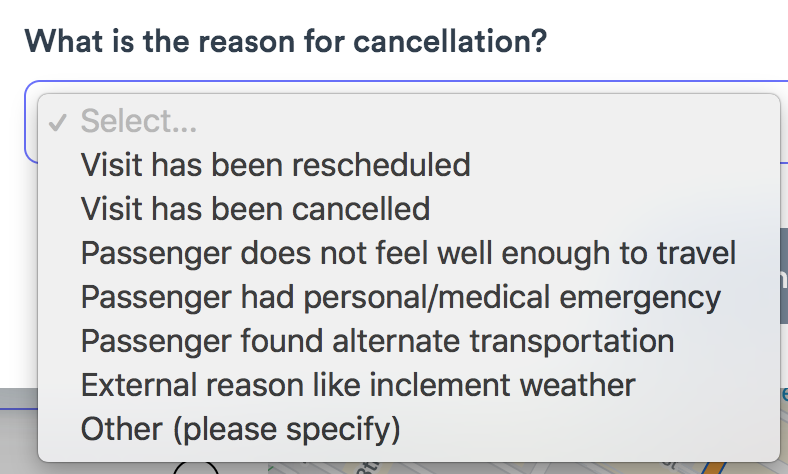 Other (please specify) will populate a free text box to specify a cancellation reason.
Comments
0 comments
Please sign in to leave a comment.